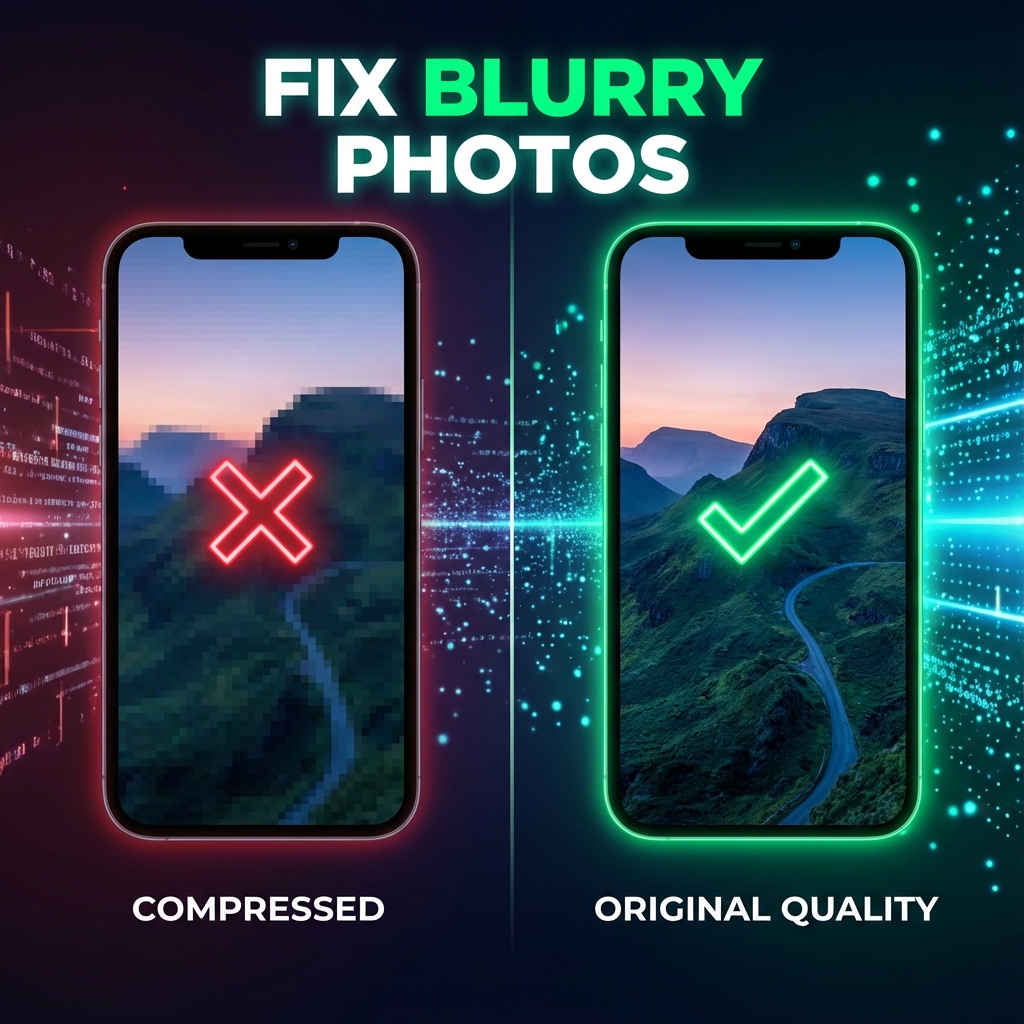
What Actually Happens When You Send a Photo on WhatsApp?
When you select a photo from your gallery and hit send, WhatsApp doesn't just transfer the file. It runs the image through a compression algorithm designed to reduce file size for faster transmission and lower data usage.
Here's the technical breakdown:
- Standard Mode: Images are resized to a maximum of ~1280px on the longest edge and compressed heavily with JPEG quality around 60-70%. This can reduce a 10MB photo to under 200KB.
- HD Mode: Introduced in 2023, HD mode allows images up to ~4096px and uses less aggressive compression (quality ~75-85%). File sizes range from 500KB to 2MB depending on content.
- Metadata Stripping: All EXIF data (camera model, GPS location, timestamps) is removed for privacy, except in Document mode.
The compression is irreversible. Once WhatsApp processes your photo, the original data is gone—you cannot "uncompress" it.
What We Observed After Testing Hundreds of WhatsApp Images
At FileInsta, we tested WhatsApp image compression using hundreds of real photos — portraits, landscapes, screenshots, and product images — across Standard mode, HD mode, and Document uploads.
- Standard mode: Consistently reduced images to ~1280px and ~60–70% JPEG quality.
- HD mode: Preserved detail up to ~4096px but still applied lossy compression.
- Pre-optimized images: Images resized to ~1600px retained the highest clarity after sending.
These findings directly influenced how we built ourWhatsApp Image Compressor, which prepares images to match WhatsApp’s internal limits before upload.
The 5 Main Reasons Photos Get Blurry on WhatsApp
1. Original Photo Is Too Large
Modern smartphones capture images at 12MP, 48MP, or even higher resolutions. When you send a 48MP photo (8000×6000px) via WhatsApp Standard mode, it gets crushed down to 1280px. That's an 84% reduction in resolution—detail is inevitably lost.
2. HD Mode Not Enabled
By default, WhatsApp sends photos in Standard mode. Many users don't realize there's an HD toggle. If you're sending family photos, event shots, or anything you care about, always enable HD mode before tapping send.
3. Network Conditions
On slow or unstable connections, WhatsApp may apply additional compression to ensure delivery. This is especially common on 2G/3G networks or when switching between Wi-Fi and mobile data.
4. Multiple Forwards
Each time a photo is forwarded, some WhatsApp clients re-compress it. After 3-4 forwards, even an HD image can look noticeably degraded. This is why viral memes and screenshots often look terrible.
5. Screenshot of a Screenshot
Taking a screenshot of a photo someone sent you, then sending that screenshot, compounds compression. The image is re-encoded twice, losing quality both times. Always download and re-send the original if possible.
How to Fix Blurry WhatsApp Photos (5 Proven Methods)
Method 1: Enable HD Mode (Easiest)
Before you hit send, tap the small "HD" toggle button at the top of the image preview. This tells WhatsApp to use higher resolution and less compression.
✅ Pro Tip: Make HD mode your default in Settings → Storage and Data → Media Upload Quality → "Best quality"
Method 2: Send as Document (Best Quality)
Tap the paperclip icon → Document → Select your image file. This bypasses all compression. The receiver gets the exact original file.
Trade-off: No chat preview. The image appears as a generic file icon. Best for professional work, prints, or archival sharing.
Method 3: Pre-Optimize Your Image (Smart Middle Ground)
Resize your photo to ~1600px and compress it yourself at 80-85% quality before sending. This prevents WhatsApp from applying heavy compression while maintaining a chat preview.
Use our WhatsApp Image Compressor, built specifically to match WhatsApp’s resolution caps, compression behavior, and HD-mode limits — so WhatsApp doesn’t need to re-compress your image again.
Method 4: Avoid Multiple Forwards
If someone sends you a photo you want to share onwards, download it first (tap and hold → Save), then send that saved copy. Don't use the Forward button for important images.
Method 5: Use Wi-Fi + HD Mode
On mobile data, WhatsApp is more aggressive with compression. Whenever possible, switch to Wi-Fi before sending photos in HD mode for the best result.
Quality Comparison: Standard vs HD vs Document
| Feature | Standard Mode | HD Mode | Document Mode |
|---|---|---|---|
| Max Resolution | ~1280px | ~4096px | Original (unlimited) |
| File Size | 100-300KB | 500KB-2MB | Original size |
| Compression | Heavy (~60% JPEG) | Moderate (~75-85%) | None (0%) |
| Chat Preview | ✅ Yes | ✅ Yes | ❌ No (file icon) |
| Best For | Casual sharing | Most photos | Professional/print |
Which Method Should You Use?
- Casual photos: HD mode
- Social media uploads: Pre-optimized image
- Work / printing: Document mode
- Catalogs / products: Pre-optimized WebP
Common Mistakes to Avoid
- Forgetting HD mode: Many users send important photos in Standard mode out of habit. Always check the toggle.
- Sending screenshots instead of originals: Screenshots add unnecessary compression layers.
- Over-forwarding: Each forward can degrade quality. Download and re-send instead.
- Ignoring file size: A 50MB RAW photo will be destroyed even in HD mode. Resize first.
- Not using Document mode when it matters: For work, portfolios, or printing, Document mode is essential.
Best Practices for Sending High-Quality Photos
- Set HD as default in WhatsApp settings.
- Pre-optimize large images to ~1600px for the best quality/convenience ratio.
- Use Wi-Fi when sending important photos.
- Choose Document mode for professional work or print-quality needs.
- Avoid multiple forwards—always re-send from your saved copy.
- Educate recipients to download and save, not forward.
Want a deeper breakdown? Read our full guide on how to compress images without losing quality.
FileInsta focuses on privacy-first, client-side image optimization, which is why all compression happens directly in your browser without uploads.