WhatsApp Image Size Guide (2025 Update)
When you send a photo on WhatsApp, the receiver rarely sees the same sharp quality displayed on your device. Even if your camera captures a crisp 4000px image, WhatsApp may downscale it, recompress it, and strip metadata. If your photos look soft or pixelated, the reason is simple: You didn’t match WhatsApp’s ideal image size. This updated 2025 guide explains the exact dimensions, formats, file-size limits, HD mode behavior, and internal compression rules WhatsApp uses. Whether you share personal photos or product images, this is your complete reference for maintaining clarity.
This updated 2025 guide breaks down the exact image dimensions, formats, file size limits, HD mode behavior, and the internal compression rules WhatsApp relies on.
Why WhatsApp Makes Images Blurry (And How to Fix It)
WhatsApp makes images blurry when the original photo is too large, exported in the wrong format, or contains metadata that triggers aggressive recompression.
To fix blurry images on WhatsApp:
- Resize to 1280px before sending
- Export as WebP or JPEG (quality 75–85)
- Ensure the color profile is sRGB
- Use HD mode when needed
The fastest fix is using the WhatsApp Image Compressorwhich prepares the image using the exact specs WhatsApp prefers.
If you want a deeper technical explanation of why WhatsApp reduces image quality, read our detailed guide on why WhatsApp photos become blurry and how to fix it.
Why WhatsApp Compresses Images
Billions of images travel through WhatsApp daily. To ensure fast delivery across all networks, WhatsApp automatically compresses photos — sometimes heavily. If you don’t optimize your image first, WhatsApp will do it for you (and usually with worse results). The solution is simple: match WhatsApp’s preferred size before sending.
- Resolution downscaling — Large photos are resized.
- Quality reduction — JPEG/WebP compression intensity increases.
- Color profile conversion — Everything is forced to sRGB.
- Metadata removal — EXIF and GPS are stripped.
If you don't optimize your image before sending, WhatsApp optimizes it for you — and not in a good way. The solution is simple: match WhatsApp’s preferred image size before sending.
If you want a quick way to optimize images instantly, try ourWhatsApp Image Compressor.
WhatsApp Recommended Image Size (2025)
To prevent heavy compression, use these specs:
- Longest side: 1280px (best clarity-to-size ratio)
- Format: WebP or JPEG (PNG is not ideal for photos)
- Quality: 70–85 (under 60 looks smudged)
- File size target: 80–200 KB
- Color profile: sRGB
Quick Table: Best WhatsApp Image Specs (2025)
| Type of Image | Ideal Resolution | Format | Quality | Avg File Size |
|---|---|---|---|---|
| Portrait | 1280px high | WebP / JPEG | 75–85 | 100–180 KB |
| Landscape | 1280px wide | WebP | 70–80 | 90–150 KB |
| Product Photos | 1200–1400px | WebP | 80 | 120–200 KB |
| Screenshots | Original size | WebP | 90 | 80–160 KB |
| Documents / Charts | PNG / WebP | 90 | 100–200 KB |
WhatsApp HD Photo Mode (2025 Explained)
WhatsApp’s HD mode increases clarity slightly but still applies compression. It reduces, not removes, compression, caps resolution around 2048px, and optimizes file size to save bandwidth.
- Reduces compression but doesn't remove it
- Caps the longest edge at around 2048px
- Still optimizes file size to reduce bandwidth
If you want completely original quality, you must send the image as a document.
When to Use HD Mode
- Travel photos
- Product images
- Portraits
- Social media uploads
Ideal Workflow Before Sending an Image on WhatsApp
Step 1 — Resize the Image
- Above 3500px → resize to 1280px
- 2000–3500px → resize to 1600px
- Below 1500px → keep as is
Resizing prevents WhatsApp’s low-quality downscaling.
Step 2 — Choose the Right Format
| Scenario | Best Format |
|---|---|
| Photos | WebP / JPEG |
| Screenshots | WebP |
| Logos, icons | PNG |
| Text-heavy images | WebP (lossless if needed) |
Step 3 — Apply Correct Quality
Use 70–85 for photos, 90 for text/screen content.
Step 4 — Export & Send Normally
Once optimized, WhatsApp won’t distort your photo further.
How WhatsApp Compresses Images (Technical)
- Downscaling with sharpening disabled
- High compression quantization tables
- Forced sRGB color conversion
- EXIF/GPS removal
- Auto-rotation handling
The more you prepare the image yourself, the less WhatsApp needs to modify it — resulting in sharper results.
Common Mistakes (And Fixes)
- Sending full-size 48MP photos → Resize to 1280px or send as document
- Using PNG for regular photos → Use WebP or JPEG
- Overcompressing (quality below 60) → Causes smudges
- Wrong color profile → Always export in sRGB
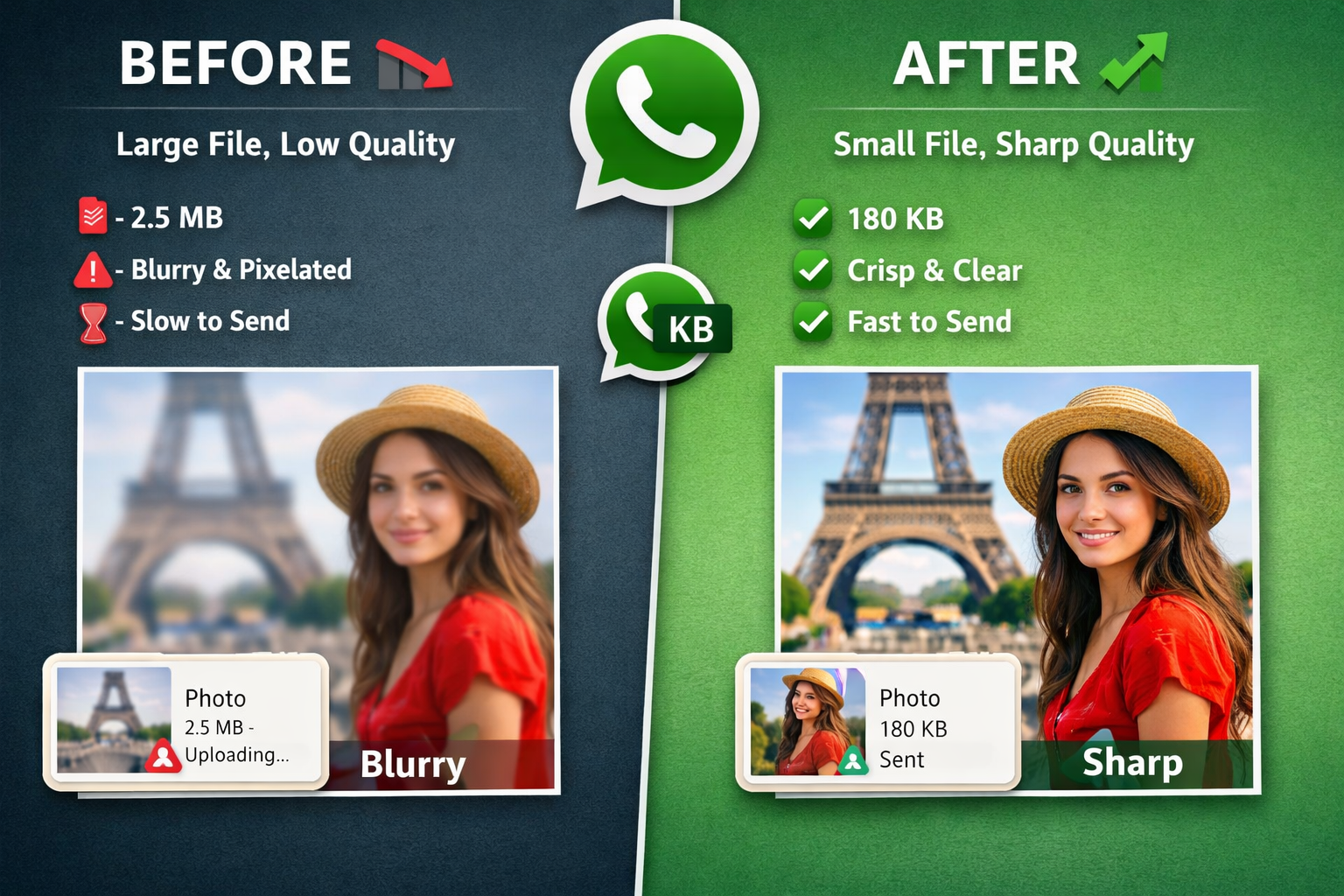
Before & After Optimization
Original: 4032×3024, 3.5MB
Optimized: 1280×960, quality 85, 170KB
After WhatsApp: nearly identical
Clarity retained: ~90%
Size reduction: 95%
Unoptimized images are compressed more harshly.
Special Case: Product Images for WhatsApp
For e-commerce, catalogs, and business photos:
- Use WebP format
- Keep 1200–1600px resolution
- Apply slight sharpening
- Quality: 80–85
When to Send as Document
Send as a document only if you need:
- Original size
- Zero compression
- Tiny text preserved
- High-detail graphics
Downside: no preview, slower viewing.
Recommended Sizes for Different Use-Cases
| Use Case | Resolution | Format | Notes |
|---|---|---|---|
| Instagram upload via WhatsApp | 1280px | WebP | Preserves clarity |
| OLX / Marketplace listing | 1400px | WebP | Clear text & details |
| Memes | 1280px | JPEG | Light & fast |
| Travel photos | 1600px | WebP | Better dynamic range |
| Documents | PNG / WebP | Send as document if needed |
How to Compress an Image for WhatsApp Using FileInsta
Follow these quick steps to prepare a WhatsApp-ready image instantly:
- Open the WhatsApp Image Compressor.
- Upload your photo.
- Choose output size (1280px recommended).
- Select WebP or JPEG format.
- Set quality between 70–85.
- Download and send on WhatsApp.
This ensures the image stays sharp and WhatsApp applies minimal compression.
WhatsApp Status Image Size (2025)
Status base resolution: 720×1280
Best export:
- 1080×1920
- JPEG/WebP
- Quality 75–80
- File size under 300KB
WhatsApp Profile Photo Size (2025)
Use:
- 1080×1080px
- JPEG or WebP
- Quality 80
Why 1280px Is the Magic Number
1280px is the internal resolution limit WhatsApp's image pipeline historically uses. Anything above this gets:
- Force-resized
- Sharpening removed
- Quantized more aggressively
Sending at exactly 1280px gives the best stability and clarity.
Final Recommendations (2025 Edition)
- Resize to 1280px
- Export as WebP or JPEG
- Use quality 70–85
- Keep file size 80–200KB
- Use HD mode for slightly better clarity
- Send as document only when necessary
Mastering image size means mastering WhatsApp clarity — and this workflow is exactly what designers, photographers, and business owners use for consistently sharp results.